7. Results
Web portal validation results
Validation results can be found on the Validation Reports page of the ACA Portal. Reminder that after install, the portal should be accessible at
https://hostname:8443/
Validation certificates
Any output validation certificates specified during the
HIRS Configuration stage are located in the
directory specified by the Provisioner configuration file appsettings.json under the scheme
certificate_output_directory.
Successful validation
A successful validation will show up on the ACA Web Portal as a
 under the
 Result column.
The individual credential validations (Endorsement, Platform and/or Firmware) that you selected
during the HIRS Configuration stage will be displayed on the far right under the
Credential Validations column. If they pass, they will show a
()
. (Note: They will be blank if not selected during validation.)
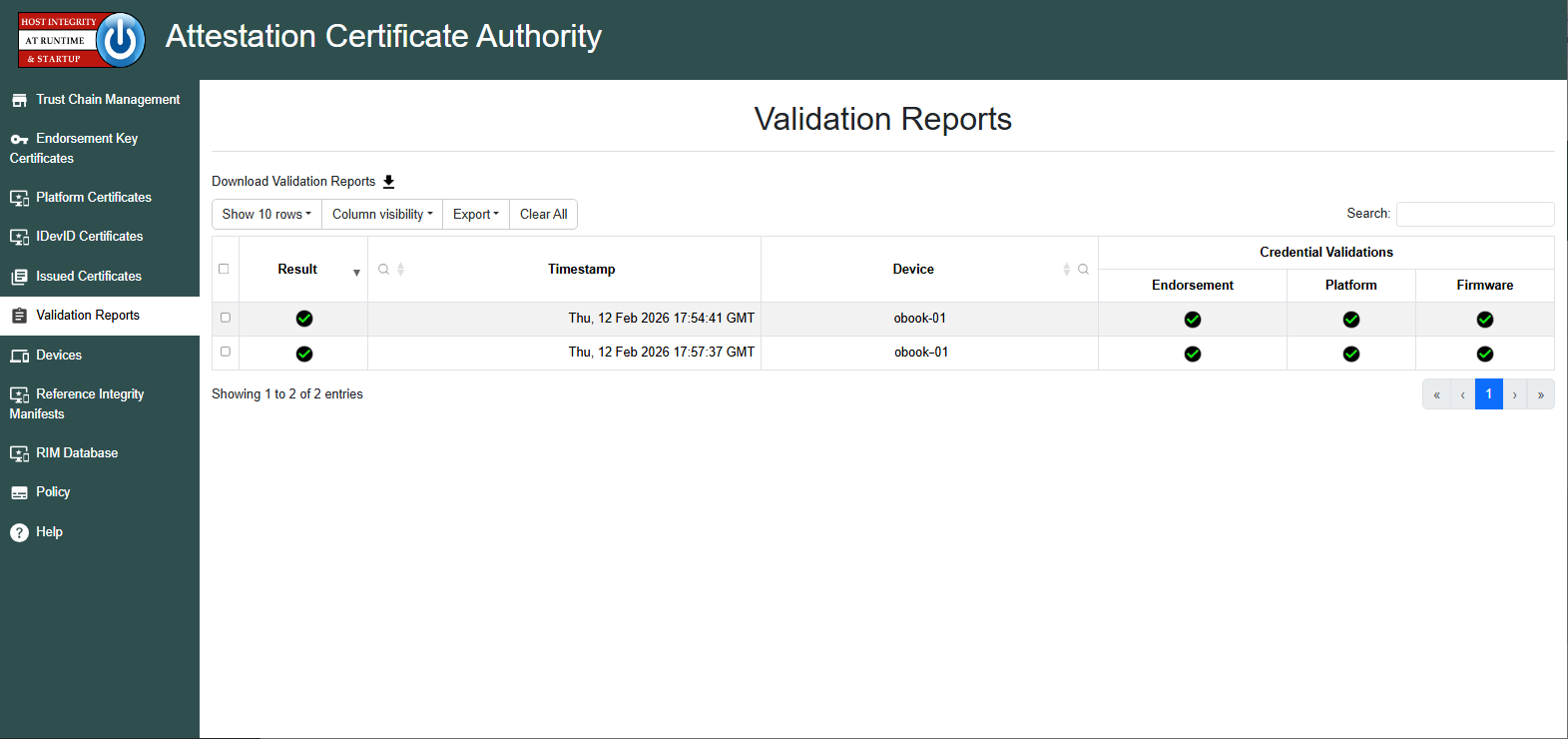
The following is an example showing two successful validation results, where Endorsement, Platform and Firmware were selected and each of those passed.
Failed validations and troubleshooting
A failed validation will show up on the ACA Web Portal as a
 . The individual credential validations (Endorsement, Platform and/or Firmware) that you selected
during the HIRS Configuration stage will be displayed on the far right under the
. The individual credential validations (Endorsement, Platform and/or Firmware) that you selected
during the HIRS Configuration stage will be displayed on the far right under the
Credential Validations column. If any of them fail, they will show a
.
After a failed validation, there are several places you can get information to help diagnose the failure.
Check the Validation Reports page
The Validation Reports page on the ACA Web Portal should show a
under the credential validation that failed. You can click on the
 to view the details of that particular credential.
Check the Provisioner shell
As the Provisioner runs on the client device, it will print information in the shell that displays the various stages of the process, which helps to identify if and where failures occur. The Provisioner will also print whether the validation failed or succeeded.
Check the Logs
The ACA Logs and the Provisioner Logs can help troubleshoot issues.
Common issues
Missing certificate chains
When checking the details of an uploaded certificate in the ACA Web Portal, if there is a
at the top in the Issuer section, this means part of the certificate chain is missing.
Policy is set to include a credential that is not uploaded
If a credential is selected during the HIRS Configuration stage but that credential is not located by the Provisioner nor uploaded by the user, the validation will fail. See the Upload Artifacts page for more information on uploading the required artifacts for the specified configuration.
Hardware or firmware alterations
If the hardware or firmware has been altered legitimately but not included
in any delta certificates, the Platform Certificate and/or RIM may not
match the current state of the device. On the Validation page
under the failed credential, select the details clipboard
to view the issues that occurred for that particular credential.
The only way to resolve this is to obtain the proper delta certificates or an updated Platform Certificate or RIM.
Event Log was not located
If the firmware is included in the Configuration stage, this requires that the TCG Event Log is uploaded as a support RIM. If no TCG Event Log is found, the validation will fail. See the Upload Artifacts page for more information.